An ADB Status Dashboard for the Quest 3, With Share-Safe Export
Quest-ADB-Dashboard is an ADB status dashboard for the Meta Quest, a small Windows tool written in C#. Plug in the device, turn on USB debugging, and battery/power, Wi-Fi, storage/memory, temperature, and build info all sit on one page. No need to type out getprop and dumpsys line by line, and no worrying about a casual screenshot leaking the serial number, BSSID, MAC, and LAN IP along with it.
It’s packaged as a single dist/Quest_ADB_Tools.bat release bundle, with Google’s platform-tools (adb.exe) tucked in alongside, so once you download it you don’t need to install the Android SDK separately. Your own adb works too; it’ll look through ADB_EXE, PATH, and the SideQuest / MQDH / VIVE Hub directories. When it runs it starts a local WebUI on 127.0.0.1; press W to open it in the browser.
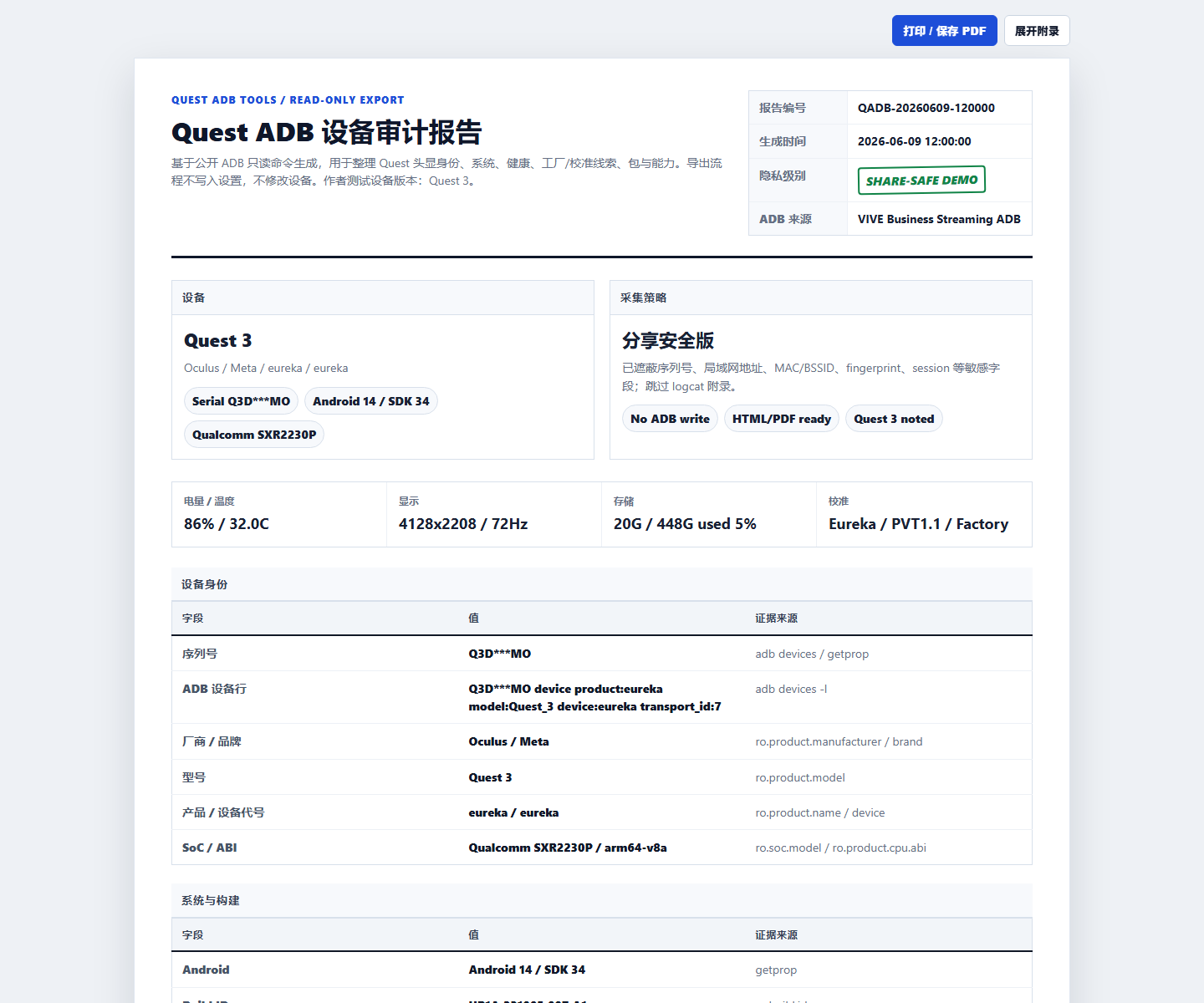
The core principle is take evidence, don’t guess: every reported value has to be traceable back to the command that produced it. The export path is strictly read-only, and underneath it’s all public read operations, getprop, settings list, dumpsys battery, dumpsys thermalservice, pm list packages, nothing that touches state. Metadata like factory calibration is labeled as inferred; if it’s a guess it says it’s a guess, rather than passing it off as a factory value. It exports two HTML files: a share-safe redacted version to post publicly, and a private-full complete version to keep for your own troubleshooting, so give it one more pass yourself before sending anything out.
Every operation that changes state is put behind manual confirmation in the WebUI. To install an APK, drag the .apk onto the install page; it parses the package name, version, and permissions first, then lays out the adb install verbatim, and installs nothing until you click confirm. It also ships two MCPs for CI / agents: the default is purely read-only, no shell, no install/uninstall, no reboot, so an agent can’t modify your device; the other one can change state and has to be enabled manually, with each tool being two-stage, preview first then execute, and irreversible operations like install, reboot, and factory reset are hard-blocked even after confirmation.
Mainly verified on the Quest 3 (eureka); most of the read-only functionality works on other Quests too once USB debugging is authorized. It has nothing to do with Meta, Qualcomm, or VIVE, it’s just a local Windows tool for use with your own authorized device. The code is at github.com/dwgx/Quest-ADB-Dashboard, MIT.