beautify-console: A Visual Beautification Panel for VS Code
beautify-console is a visual beautification panel for VS Code. It pulls the appearance settings you’d normally edit by hand in settings.json, or that are scattered across various extensions, into one graphical UI where you change things by clicking. Fonts, layout, editor, animations, corner radius, themes, plus multi-region background images, all tuned in one place.
What you can tune
Fonts are auto-scanned from the programming fonts installed on your system; tick one to use it, with size, line height, weight, and ligatures right next to it. The editor section gathers the usual scattered options such as smooth caret, smooth scrolling, bracket colorization, indent guides, sticky scroll, and the minimap into one spot. Animations come in 5 levels (default, smooth, bouncy, fancy, off), backed by a set of tuned spring easing curves rather than numbers thrown in at random. Corner radius is managed for the whole UI through a single slider.
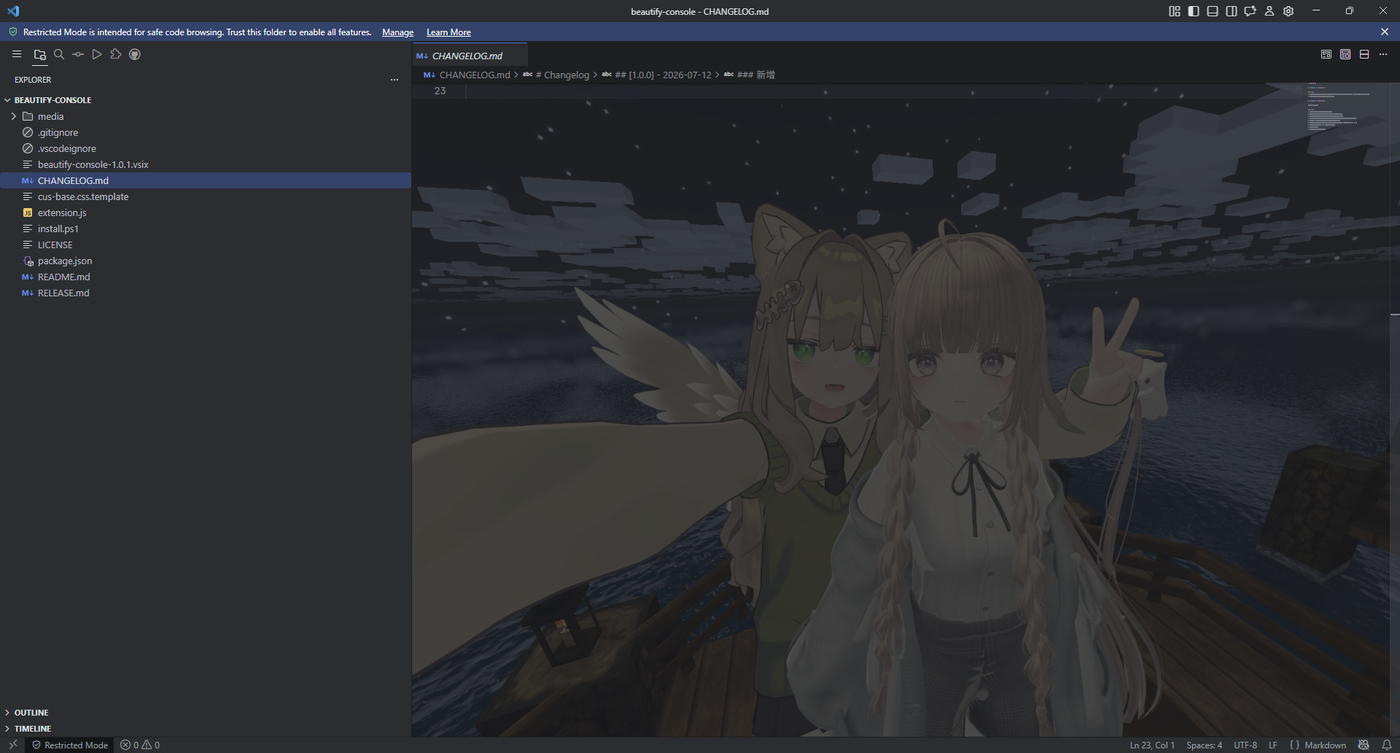
Background images got the most attention, since VS Code doesn’t support them officially. Here they’re split into four regions, editor, sidebar, panel, and fullscreen, each with its own image. Dark themes use mix-blend-mode: screen to blend, so the image doesn’t muddy the code, and multiple images can rotate on a timer with fade-in. Images you set are copied to the user directory automatically, so deleting the originals doesn’t break anything. The whole config can be imported and exported, so once you’ve dialed in a setup you can share it or import it back when switching machines.
A few gotchas
This kind of beautification fundamentally means injecting CSS into VS Code’s core files, which is an unofficial approach. beautify-console doesn’t touch the core files itself; instead it borrows Custom UI Style as the injection layer, and prompts you to install it on setup. The background selector takes cues from the approach in shalldie/vscode-background.
There are two costs. On startup you may get a yellow “Your installation appears to be corrupt” banner; just click “Don’t show again.” And after a VS Code update the injected styles get overwritten by the official files and stop working; run Custom UI Style: Reload once to re-inject and they come back. There’s no way around this, so go in knowing it.
To install, download the .vsix from Releases, or clone and run install.ps1. Once installed, hit Ctrl+Shift+P and type “美化: 打开控制台” to open it. The repo is at https://github.com/dwgx/beautify-console, take it and modify it as you like.